
What are multi-accounts for?
The multi-account feature allows an HR or recruitment team within the same entity to work with multiple accounts and manage data in an organized way. It is particularly useful when several recruiters, managers, or consultants are involved in analyses, campaigns, or job briefs.
Multi-accounts also facilitate collaboration through the ability to transfer data between accounts of the same company, for example, to transfer a Personi (job brief) or a candidate analysis to a colleague.

Want to organize Trimoji on a team scale and streamline collaboration between recruiters and HR?
Request a Trimoji demoWhat multi-accounts enable
Work together within the same organization
Each user can have their own account while remaining within the company's scope, allowing for work distribution and effective action tracking.
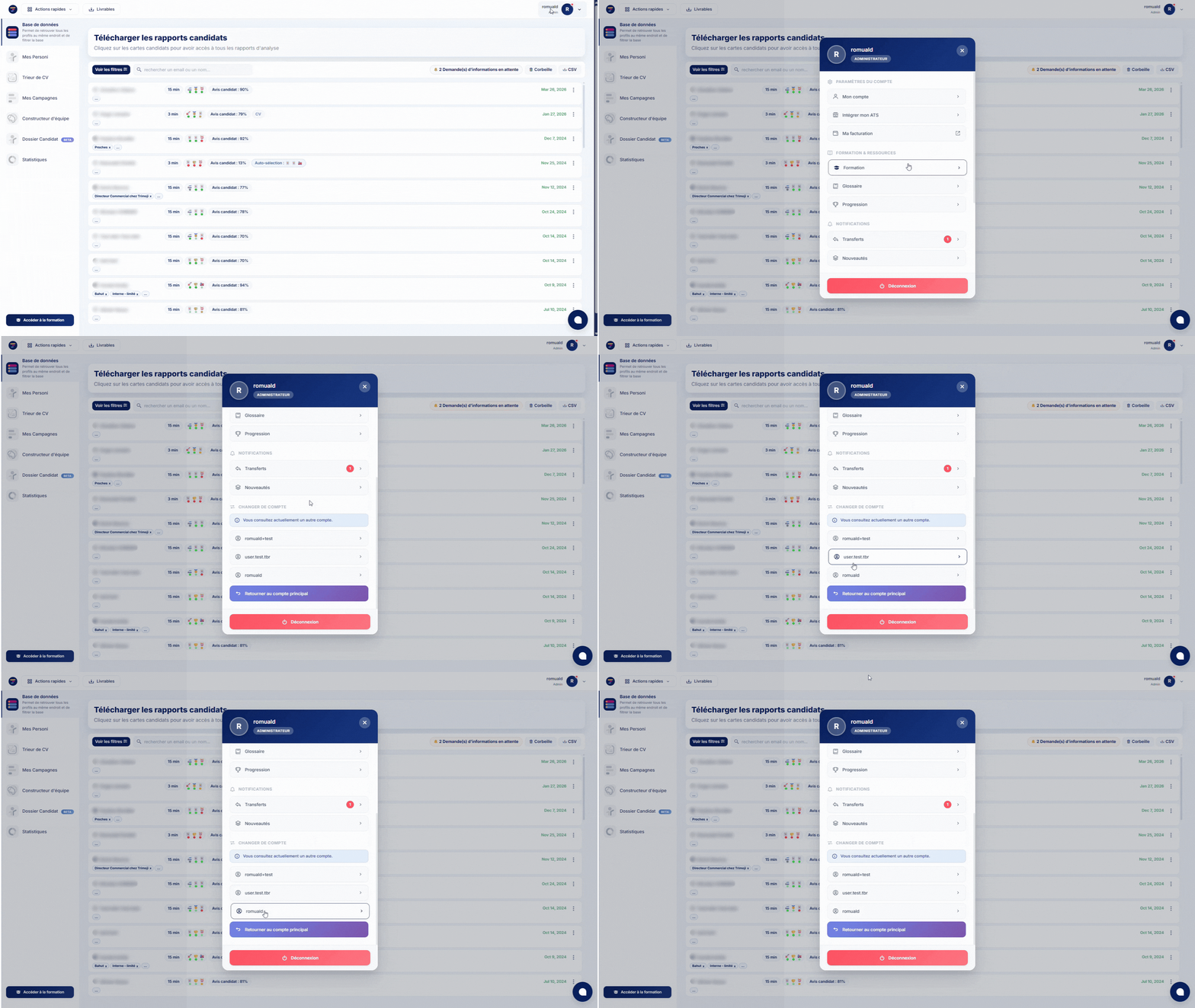
Switch accounts easily
The interface offers a "Switch Account" action that displays a list of available accounts, allowing for quick switching between accounts depending on the work context.
Transfer data between accounts of the same company
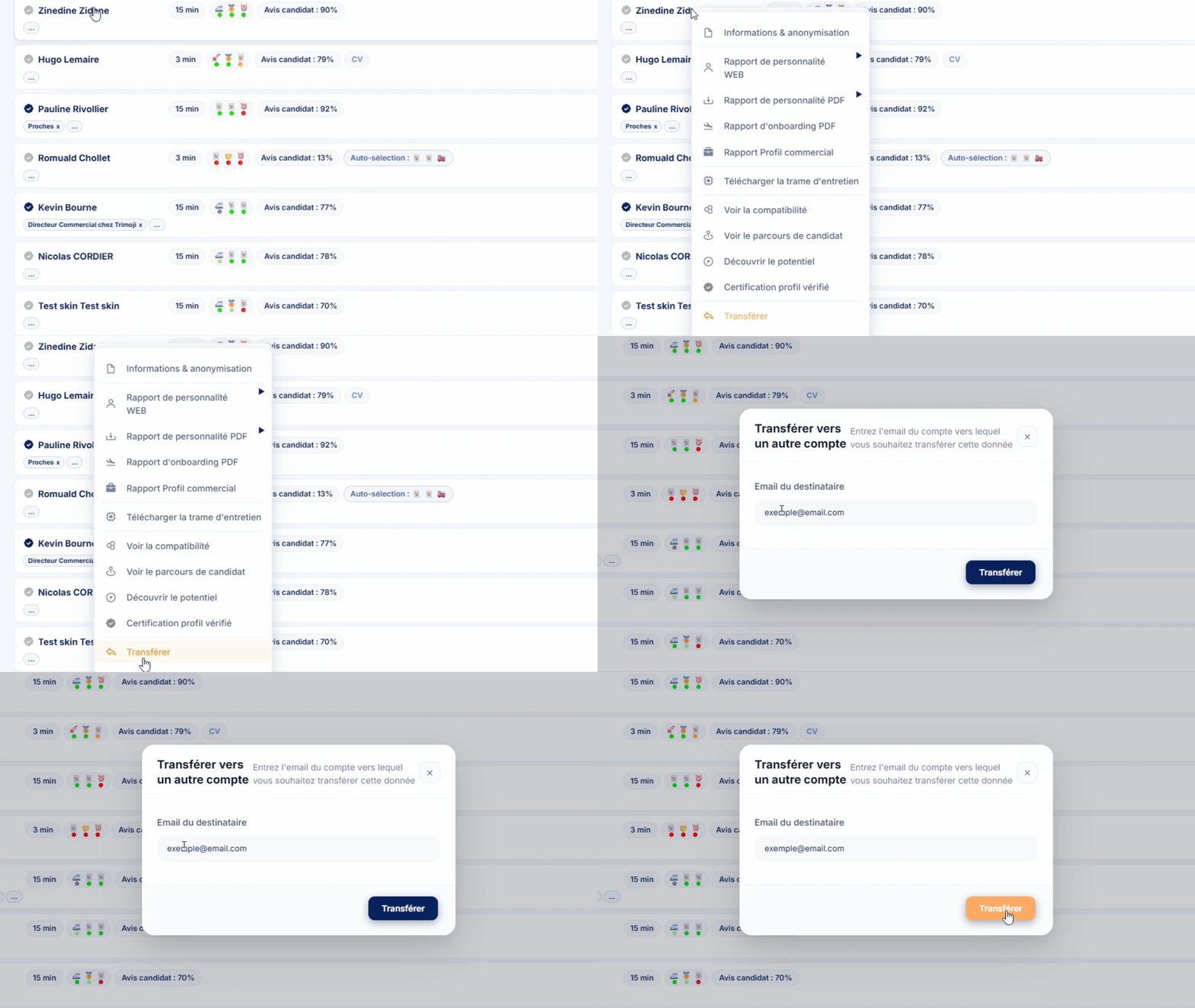
From an analysis or a Personi, you can trigger the "Transfer" action to send the data to another account within the same company. The transfer includes, but is not limited to:
- a candidate analysis
- a Personi (job brief)
How transfers between accounts work
Step 1: Initiate a transfer from the relevant item
From the action menu of an analysis or Personi, select "Transfer."
Step 2: Choose the recipient account
A "Transfer to another account" window will open. Enter the email of the recipient account, then confirm by clicking the "Transfer" button.
Important: Transfers are limited to accounts belonging to the same company, ensuring secure sharing and preventing transfers outside the scope.
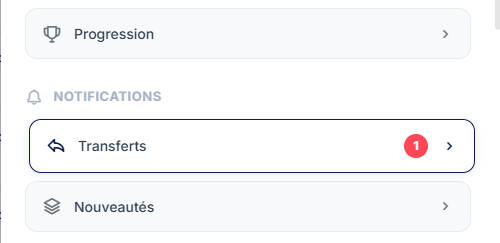
Step 3: Notification on the recipient's end
The recipient will receive:
- a notification in the "Transfers" tab
- an email indicating a transfer request has been initiated, with a button to access the transfer page
Step 4: Accept or reject
In the list of transfers, the recipient can choose to:
- Accept
- Reject

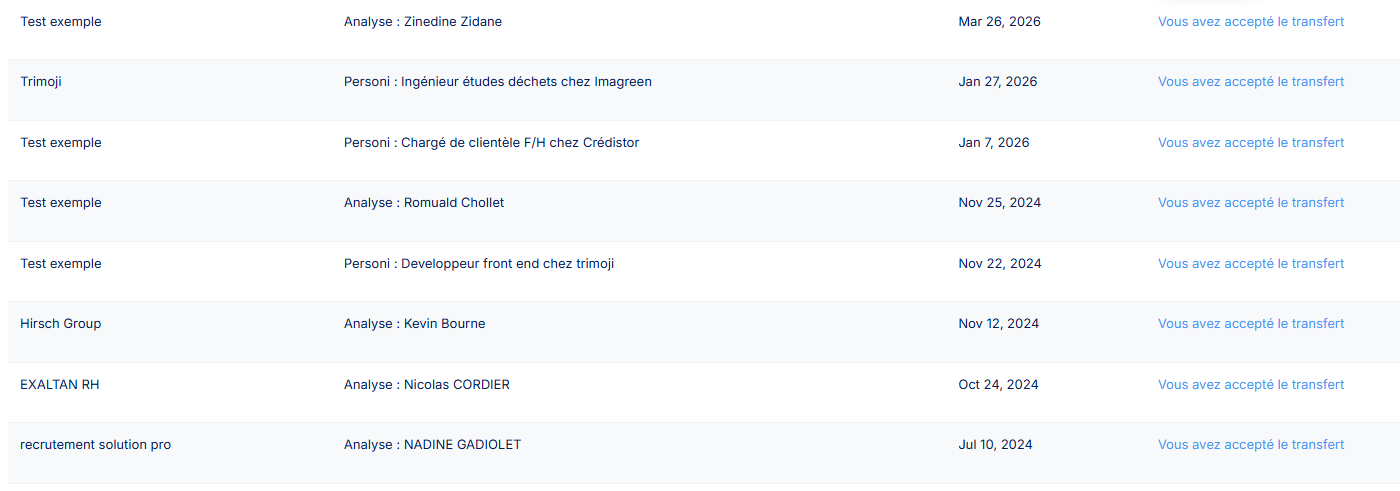
Step 5: Maintain a clear history
A history of transfers is available on the "Transfers" page, with useful information for tracking, such as:
- who initiated the transfer
- what type of transfer (analysis or Personi)
- the date
- the action taken (accepted or rejected)
Why it's useful for an HR or recruitment team
Smoother collaboration
A recruiter can transfer an analysis to a manager, or a consultant can transfer a Personi to a colleague, without requiring manual duplication.
Continuity on a case
When a case changes hands, transfers allow for quickly passing the work item to the right contact, with validation from the recipient.
Cleaner and traceable organization
Account switching and transfers help maintain a scope-based logic. The history also allows for keeping a record of internal exchanges.
Use cases
✅ Handing over a case between recruiters.
✅ Sharing a Personi created by a manager with the recruiter in charge.
✅ Sending an analysis to a colleague for review or validation.
✅ Organizing a team, whether it's a consulting firm or an HR team, with multiple accounts, while maintaining a defined company scope.
FAQ
Is the transfer limited to accounts within the same company?
Yes, transfers are strictly limited to accounts within the same company.
Does the recipient need to validate the transfer?
Yes, they receive a request and have the option to accept or reject the transfer.
Can we track who transferred what and when?
Yes, a detailed history is available on the "Transfers" page to ensure complete tracking.
Can we transfer analyses and Personis?
Yes, both types of data, analyses and Personis, can be transferred using this feature.
Want to organize Trimoji on a team scale and streamline collaboration between recruiters and HR?
Request a Trimoji demo